Create a Sequence
Summary
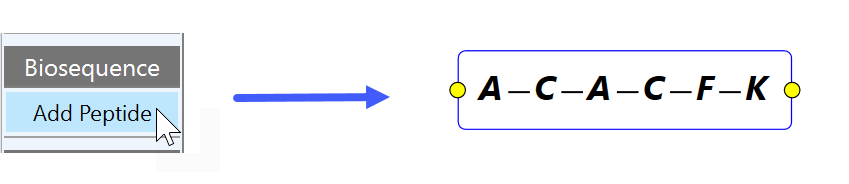
This topic demonstrates how to add a new, basic peptide sequence to the reaction sketch.
Step by Step
Click the Add Peptide button (1) to add a new peptide sequence to the reaction sketch. When done, an empty sequence is added to the sketch and the editor window splits, displaying the peptide detail area in its lower part:
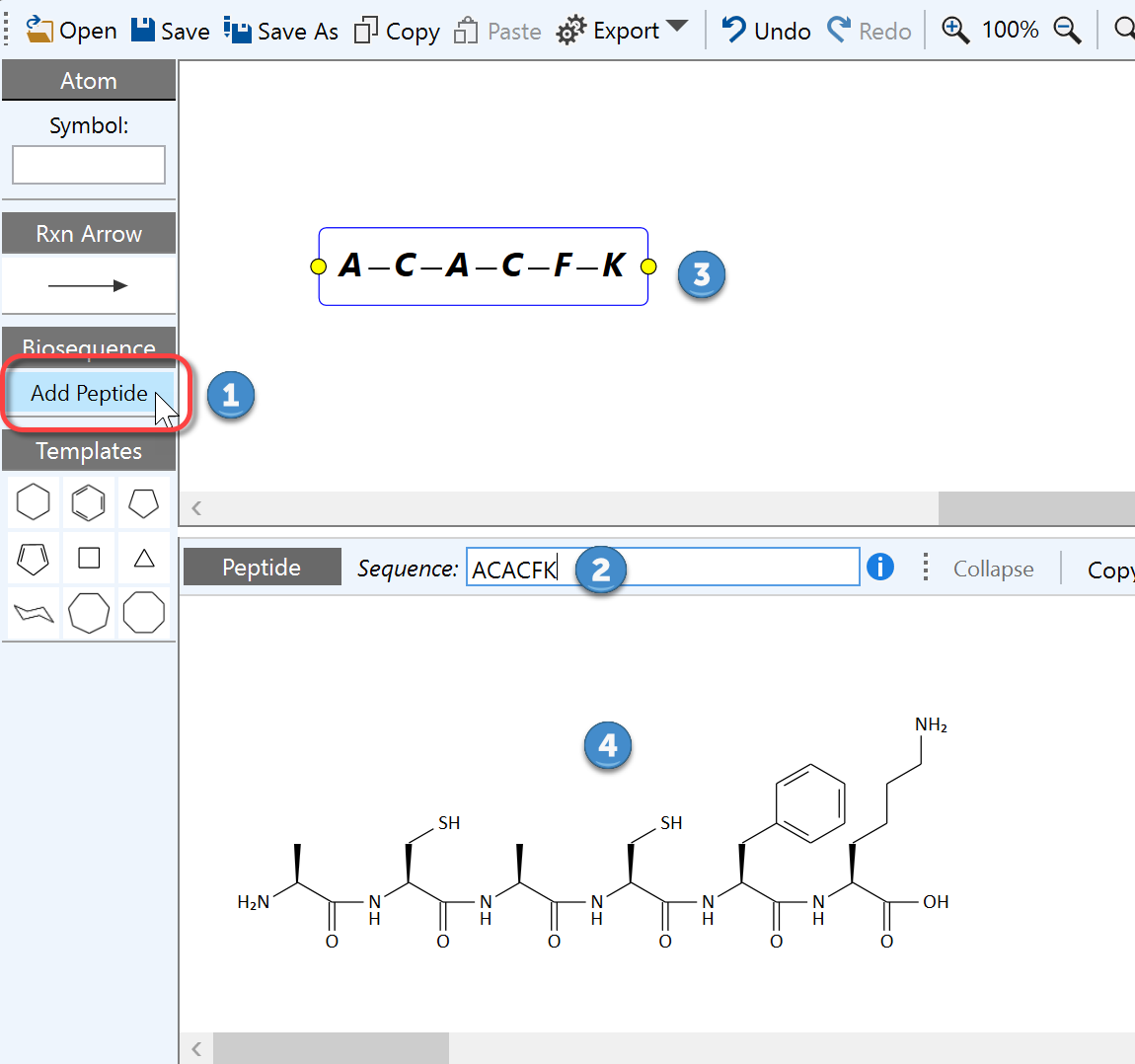
To specify a peptide sequence, type (or paste) the desired series of 1-letter amino acid codes into the sequence text box (2), e.g. 'ACACFK’, as in the example above. Following amino acid standard abbreviations are supported:
L-Series: A,C,D,E,F,G,H,I,K,L,M,N,O,P,Q,R,S,T,U,V,W
D-Series: a,c,d,e,f,g,h,i,k,l,m,n,o,p,q,r,s,t,u,v,w
While typing, both the sketch biosequence element (3) and the biosequence detail panel (4) are continuously updated. The sequence text box allows sequences to be pasted from other sources and to rearrange parts of sequence via text selection drag/drop.
The biosequence detail panel (4) appears after selecting the first biosequence element (3) of a specific sketch. By default, this panel remains visible afterwards, i.e. it remains pinned. The pin button located at its top right corner is highlighted to reflect this state:

If you wish the biosequence panel to disappear whenever no biosequence element is selected in the current sketch, then just toggle above pin button by a mouse click.
Next Steps
This topic guided you through the creation of a basic peptide sequence, which usually will required further modifications. Please refer to the subsequent topics of this section about protecting groups, resin attachments, crosslink bonds and the attachment of non-peptide structures.