Experiment Tags
General
Experiment tags are searchable keywords you can attach to experiments. Phoenix ELN lets you manage your own set of reusable tags.
The Human Factor
Precautions have been taken in Phoenix ELN to avoid common pitfalls when working with tags. Still, the human factor cannot be eliminated entirely. The effectiveness of tag‑based searches depends on your discipline in consistently assigning tags to your experiments. This contrasts with Substructure and Full‑Text searches, which require no such user‑generated metadata. A reliable tag system requires:
- Persistence: You need to be systematic and consistent in assigning tags. If you miss to attach tags to an experiment, it definitely won't be found by tag search.
- Phoenix ELN helps mitigate this by automatically carrying over tags from the source experiment when you clone or import it. This covers the common scenario of repeating experiments, for example during optimization work.
- Consistency: Tag search will miss experiments when multiple tags are utilized for the same thing (due to synonyms, typos, etc).
- Phoenix ELN addresses this by only letting you assign predefined custom tags. These propagate changes (rename, delete) to all experiments already referencing them, keeping them in sync.
Working with Tags
You can add tags to an experiment by clicking the [+] button in the Search Tags section of the experiment properties side panel. Each experiment can have up to six tags.
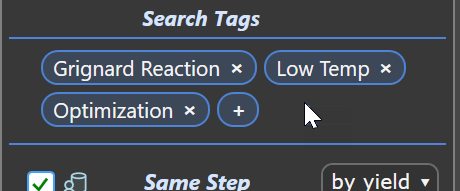
Clicking the [+] button opens the Manage Tags dialog, where you can:
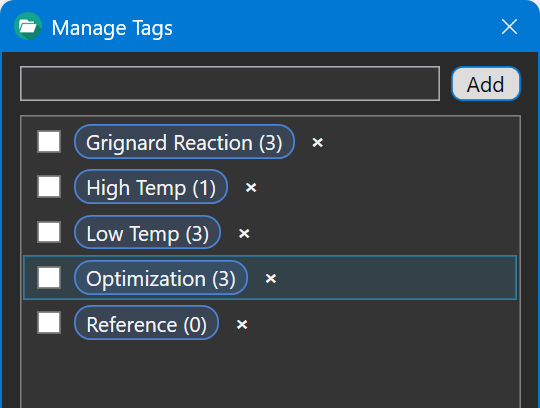
- Add/Remove Predefined Tags: Check the box next to any existing tag to add it to your experiment. Unchecking it removes the tag from that experiment. Multiple tags can be checked or unchecked.
- Create New Tags: Type a name into the text field next to the Add button, then click Add to create the tag, which is immediately attached to the current experiment.
- Delete Tags: Click the x next to a tag to delete it from your tag list - including from all experiments using it. The number in parentheses shows how many experiments currently use that tag. If you only want to remove a tag from the current experiment, simply uncheck it instead.
- Rename Tags: When a tag is selected (highlighted), its title is displayed in the text field, and the Add button switches to Rename. Edit the title in the text field and click Rename. The updated title is subsequently applied both in your tag list and across all experiments that use it.
A variation of this dialog is available from the Search menu: Search → Manage Tags ... It is intended for general tag management independent of the current experiment, and therefore does not display the tag‑assignment check boxes shown in the dialog above. Aside from that, it provides the same functionality as above current experiment‑specific version.
Searching for Tags
Tag searches are described in this chapter.